
thorn Guide
Everything you need to know about the editor, themes, focus mode, GitHub sync, AI annotations, and more.
Getting Started
thorn runs entirely in your browser. Open thorn.html and you're writing. There's no account, no cloud sign-in, no download.
Your documents are stored in your browser's local storage. They persist across sessions on the same device. You can optionally sync them to a GitHub repository — nothing leaves your browser unless you explicitly set that up.
First steps
- Open the app. A blank document is waiting.
- Start typing. Markdown renders as you go.
- Use ⌘K to open the command palette — it's the fastest way to do anything.
- Pick a theme that suits your light conditions.
- Come back tomorrow. Your document will be there.
thorn stores documents in localStorage — on your device, in your browser. Nothing is sent to any server. GitHub sync is optional and uses your own repository and credentials.
The Editor
The editor is minimal by design. There's no toolbar — formatting happens through Markdown syntax, keyboard shortcuts, or the command palette. The preview renders inline: headers look like headers, bold looks bold, code blocks get syntax hints.
Markdown basics
Everything you already know works. thorn supports the CommonMark spec plus a few writing-friendly extensions:
- Headings —
# H1,## H2,### H3 - Bold —
**bold**or__bold__ - Italic —
*italic*or_italic_ - Strikethrough —
~~text~~ - Code — inline
`backticks`or fenced```blocks - Blockquote —
> text - Horizontal rule —
--- - Links —
[label](url)
Formatting shortcuts
Select text first, then press the shortcut. It wraps your selection in the right syntax.
| Format | Shortcut |
|---|---|
| Bold | ⌘B |
| Italic | ⌘I |
| Strikethrough | ⌘ShiftS |
| Code (inline) | ⌘E |
Table of contents
Open the command palette and choose Toggle Contents (or press ⌘ShiftT). A panel slides out on the right with every heading in the document. Click any heading to jump to it.
Themes
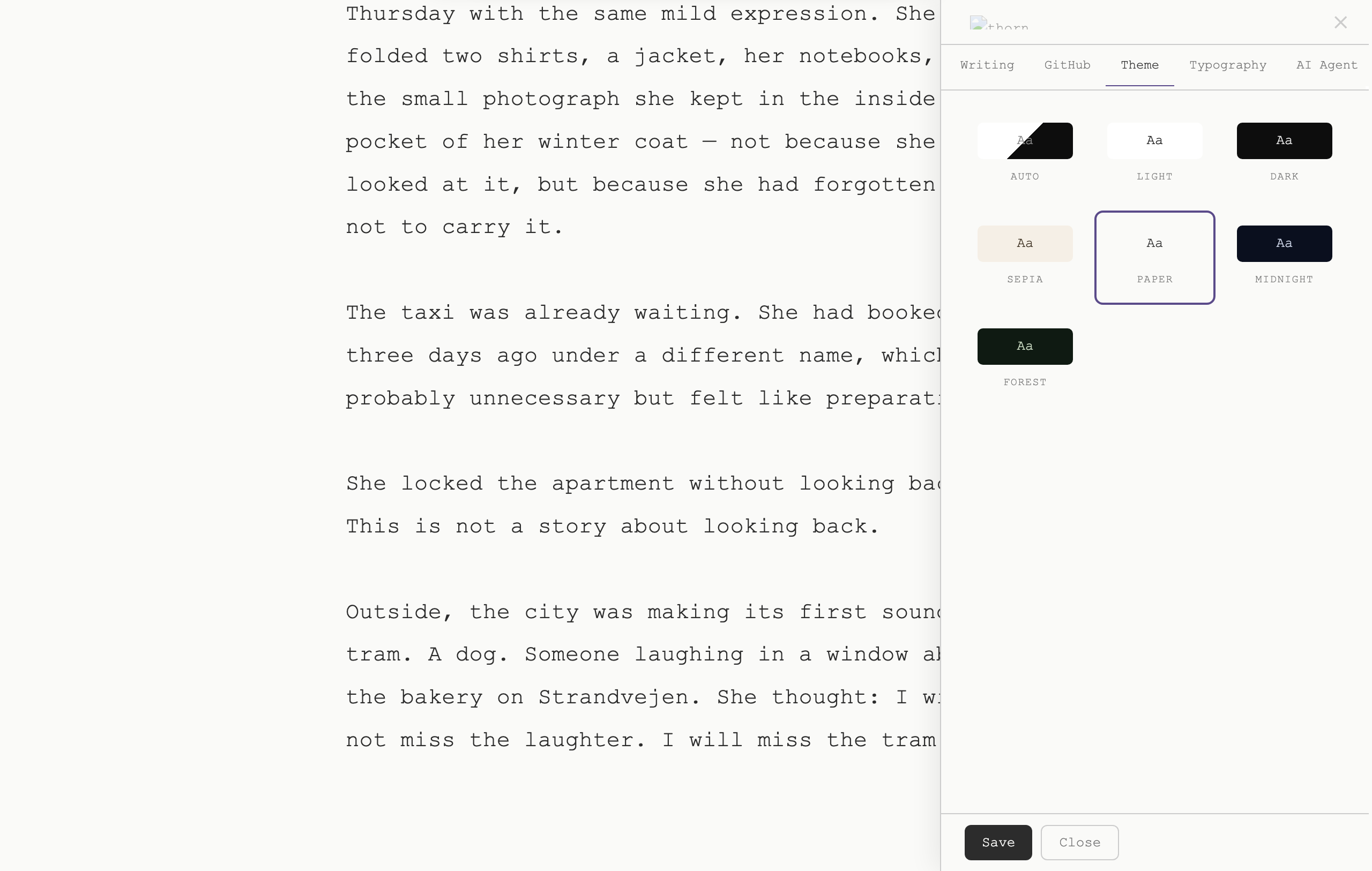
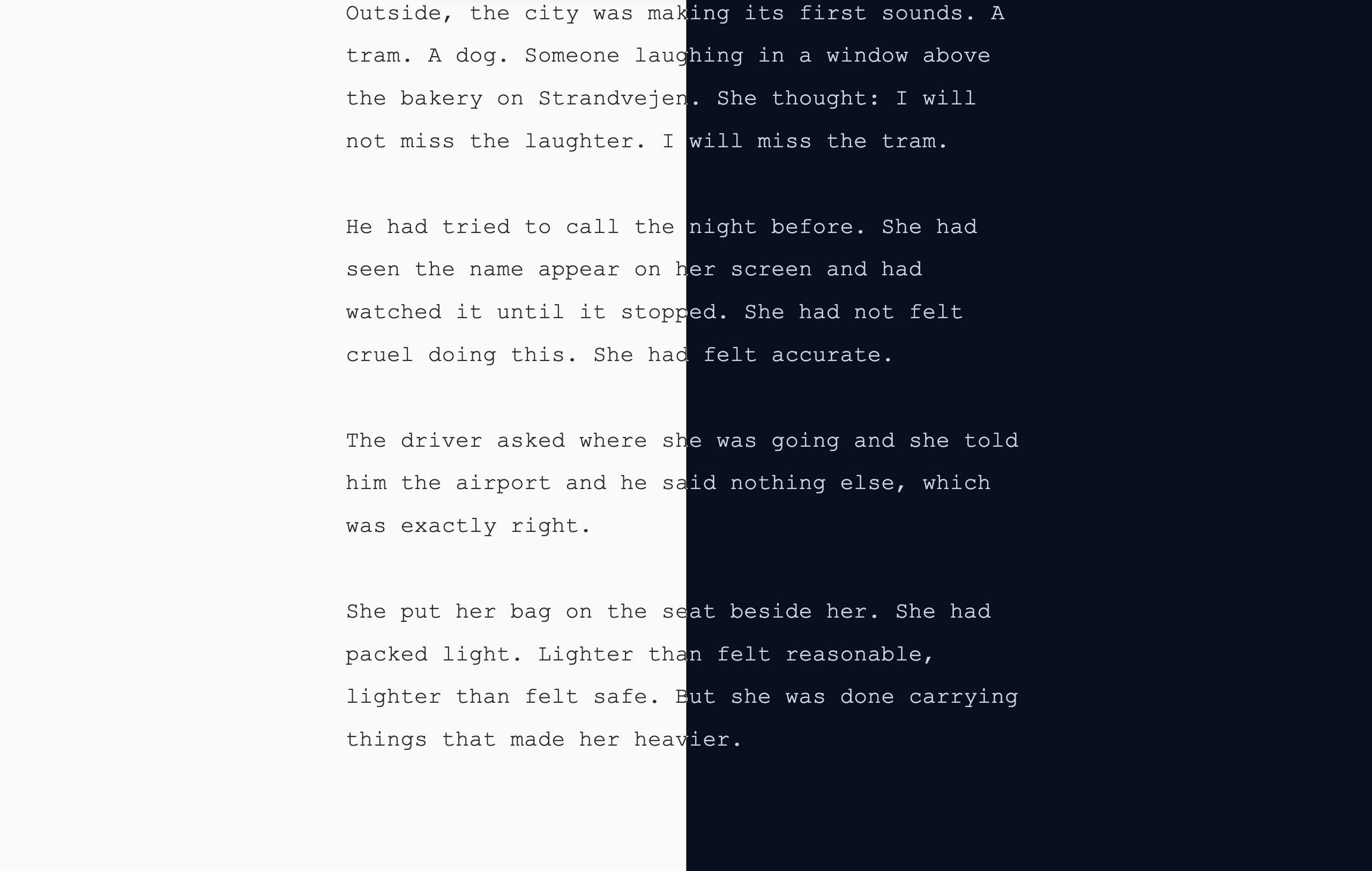
thorn ships with eight themes. Each one was tuned for a specific mood or lighting condition — not just color-inverted.
Switching themes
Three ways to switch:
- Open the theme picker from the command palette (⌘K → Themes)
- Press ⌘Shift; to cycle through all eight in order
- Use the command palette and type the theme name directly
Focus Mode
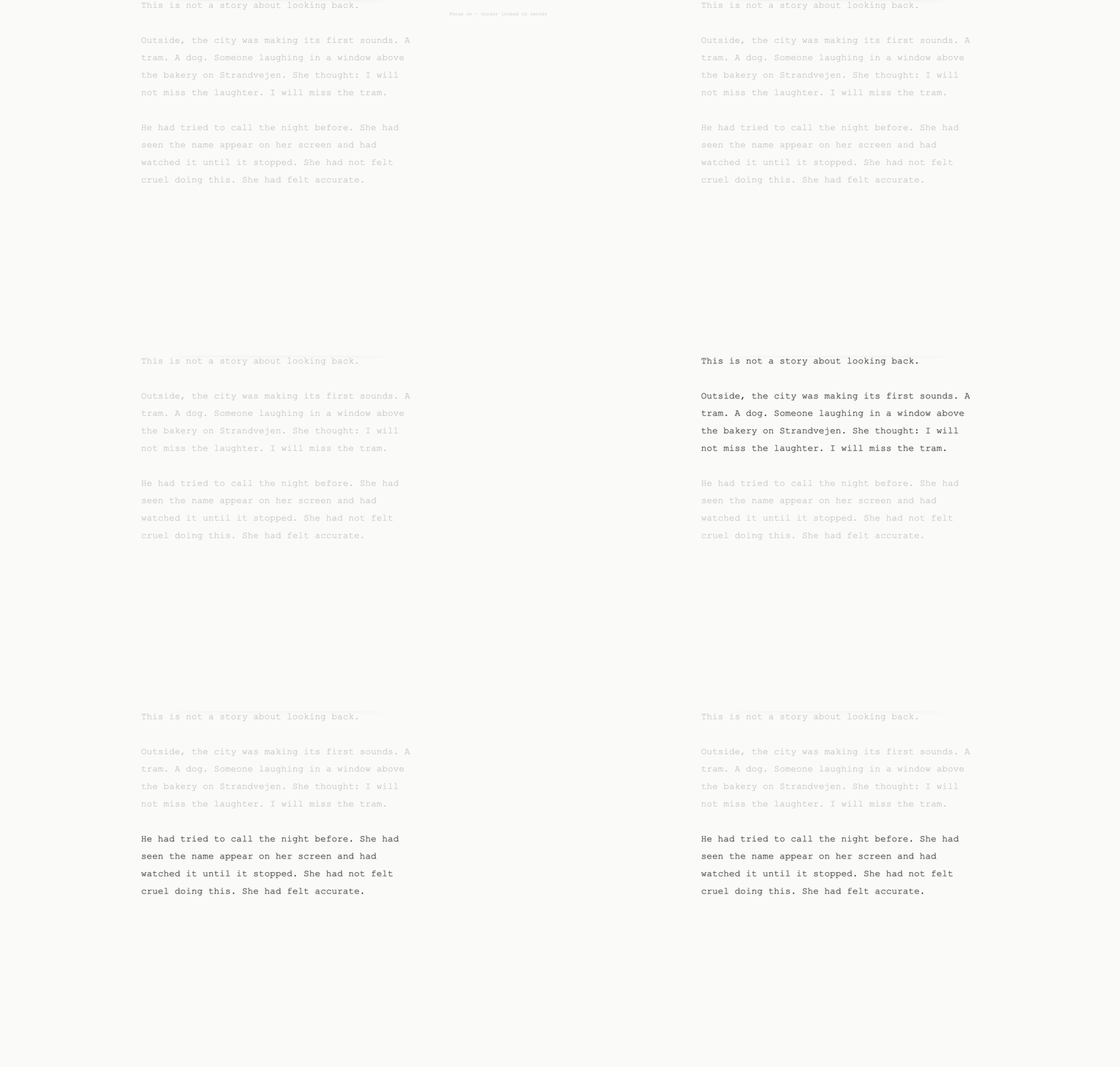
Focus mode removes everything except the document. Sidebars retract, the status bar vanishes, the chrome disappears. The current paragraph is highlighted; everything else dims.
It's designed for the part of writing that needs silence — not outlining, not referencing, not reviewing. Just producing.
Entering focus mode
- Press ⌘ShiftF
- Or open the command palette and choose Focus Mode
Press the same shortcut to exit. Or hit Esc.
What stays visible
The document itself, the cursor, and the scroll position. That's it. No word count, no filename, no buttons.
Focus mode pairs well with a dark theme — Midnight or Dark — if you're writing at night. Paper or Sepia work better in daylight.
File Browser
The left panel shows all documents stored in thorn. Click any file to open it. Rename it by clicking the title. Delete it from the document menu.
Creating and managing documents
- New document — press ⌘N or use the command palette
- Switch document — click any file in the browser, or ⌘P for a search prompt
- Rename — click the document title at the top of the editor
- Delete — open the command palette → Delete Document (prompts for confirmation)
Toggling the panel
Press ⌘1 to show or hide the file browser. It stays hidden in focus mode.
Document storage
Documents are stored in localStorage in your browser. They're tied to the device and browser profile — not an account. If you clear browser data, they're gone. Use GitHub sync to back them up.
Tabs
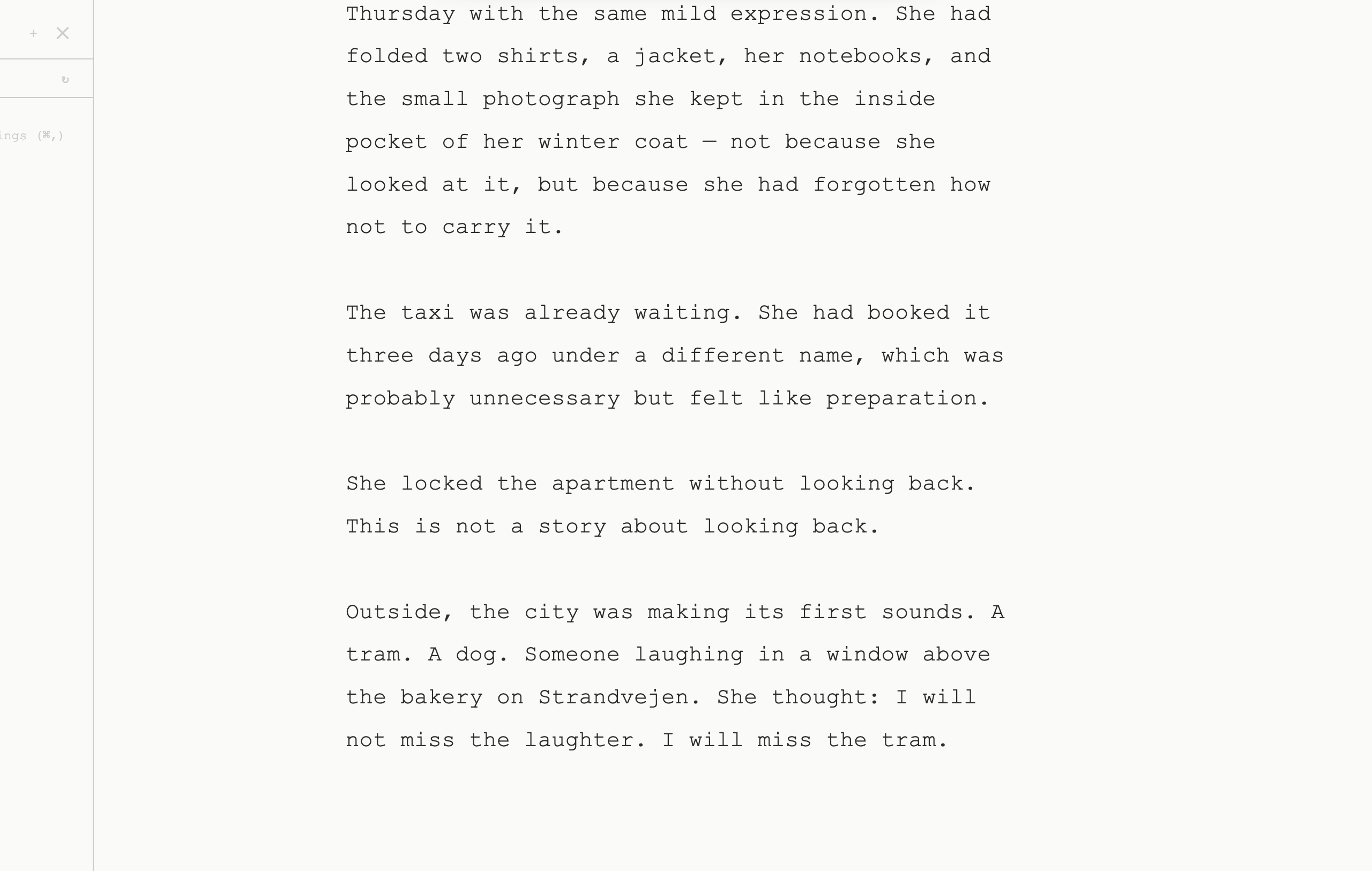
When you have more than one document open, thorn adds a tab bar at the top. It stays hidden until you need it.
Revealing the tab bar
Move your cursor to the top-left corner of the screen. The tab bar slides into view. Move away and it disappears.
While visible: click a tab to switch, + to open a new document, × to close a tab.
Why it hides
Thorn keeps the writing surface uninterrupted. The tab bar is there when you need it, invisible when you don't.
AI Annotations
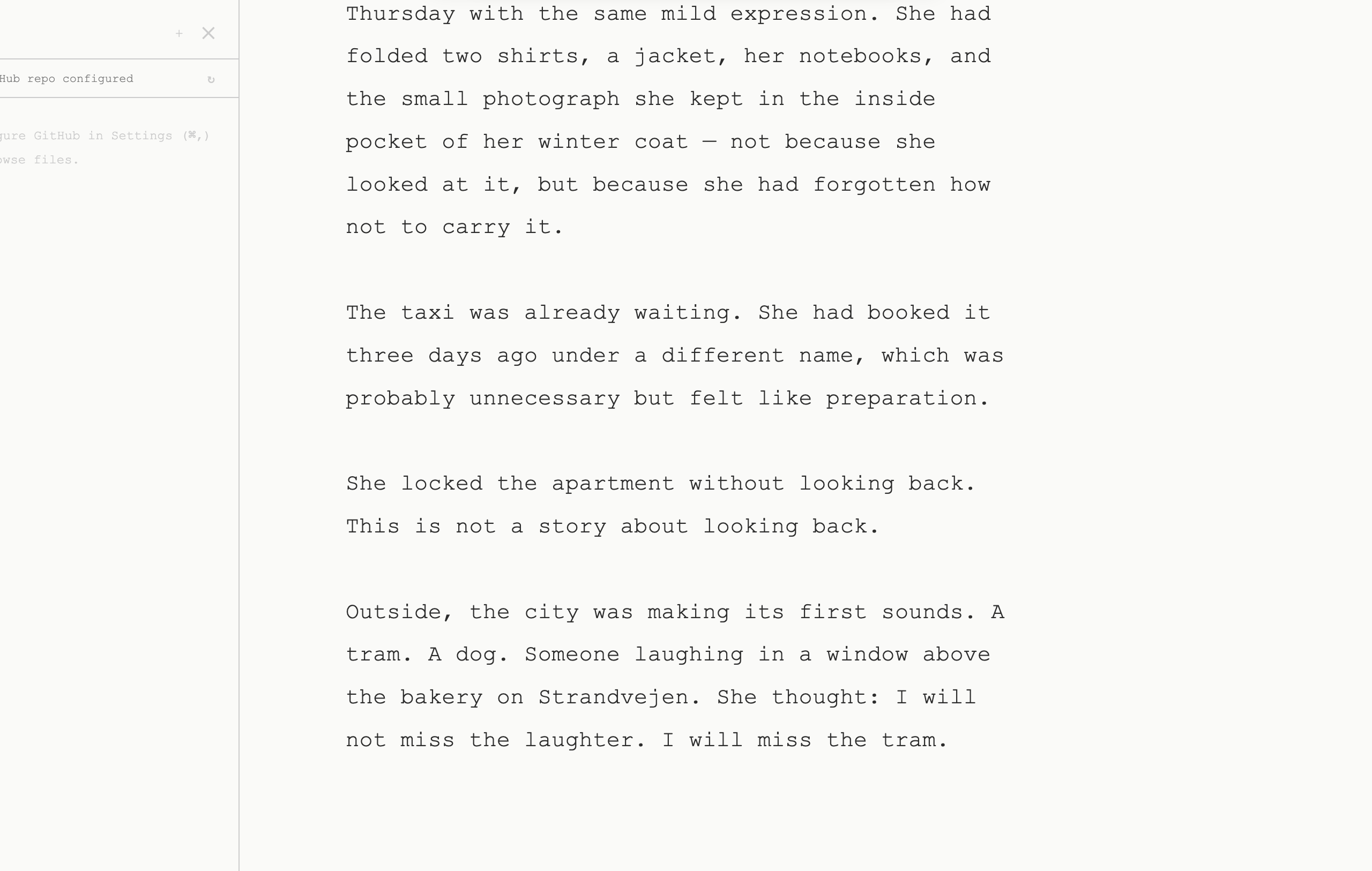
Select any passage in the editor. A small annotation button appears. Click it and thorn sends that selection to an AI model for analysis — style, argument, clarity, structure, whatever you ask.
The result appears as an inline annotation in the right panel, anchored to the passage you selected.
Setting up your API key
thorn uses your own API key — typically OpenAI. Nothing is proxied through a server. The key is stored in localStorage and sent directly from your browser to the model provider.
- Open Settings (⌘,)
- Paste your API key in the AI Key field
- Save. Annotations are now active.
Your API key and your text are sent directly from your browser to OpenAI (or your configured provider). They never pass through any thorn server — because there is no thorn server.
Annotation types
You can configure what the AI looks for in Settings. The default prompt asks for general writing feedback, but you can tune it: structural critique, line-editing, argument logic, tone review, whatever fits your current draft stage.
Managing annotations
Press ⌘2 to toggle the annotations panel. Individual annotations can be dismissed by clicking the × on each card.
GitHub Sync
Connect thorn to a GitHub repository and your documents sync as Markdown files. Each save creates a commit. You get full version history, a backup, and the ability to write from any device that has access to the repo.
Setup
- Create a GitHub repository (or use an existing one). It can be private.
- Generate a Personal Access Token with
reposcope at github.com/settings/tokens. - Open thorn Settings (⌘,)
- Paste your token and repository name (
owner/repo) - Save. Sync is now active.
Each document in thorn maps to a .md file in the repository. The filename is derived from the document title. Saves are committed automatically; you can also trigger a manual sync from the command palette.
Conflict handling
If the remote file has changed since your last pull, thorn will warn you before overwriting. You can choose to pull the remote version (discarding local changes) or push your local version (overwriting remote).
Working without sync
GitHub sync is entirely optional. thorn works perfectly offline and without any external account. Documents live in localStorage until you delete them or clear browser storage.
Command Palette
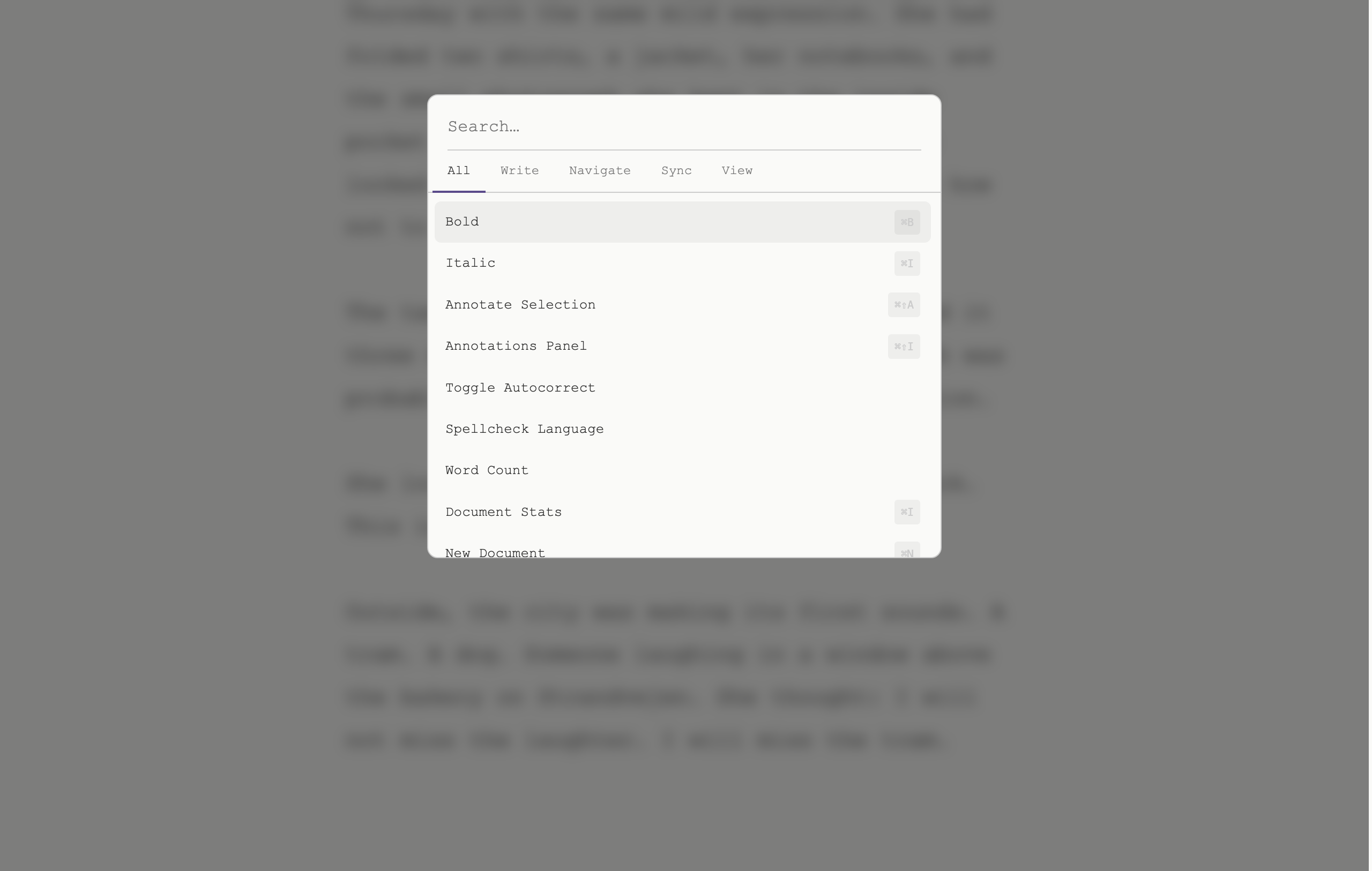
The command palette is the fastest way to do anything in thorn. Open it with ⌘K, type a few letters, and press Enter.
What you can do from the palette
- Switch documents — type a title, jump to any file
- Create a new document
- Switch theme — type the theme name
- Toggle Focus Mode
- Toggle File Browser
- Toggle Annotations panel
- Toggle Table of Contents
- Open Settings
- Sync to GitHub (if configured)
- Delete current document
- Change font size / line width
Search is fuzzy — type foc to get Focus Mode, mid to get Midnight theme.
Keyboard Shortcuts
Editor
| Action | Shortcut |
|---|---|
| Command palette | ⌘K |
| New document | ⌘N |
| Switch document (search) | ⌘P |
| Save / sync | ⌘S |
| Settings | ⌘, |
Formatting
| Action | Shortcut |
|---|---|
| Bold | ⌘B |
| Italic | ⌘I |
| Strikethrough | ⌘ShiftS |
| Inline code | ⌘E |
Panels
| Action | Shortcut |
|---|---|
| Toggle file browser | ⌘1 |
| Toggle annotations | ⌘2 |
| Toggle table of contents | ⌘ShiftT |
| Focus mode | ⌘ShiftF |
Themes
| Action | Shortcut |
|---|---|
| Cycle themes | ⌘Shift; |
| Theme picker (palette) | ⌘K → type theme name |
Settings
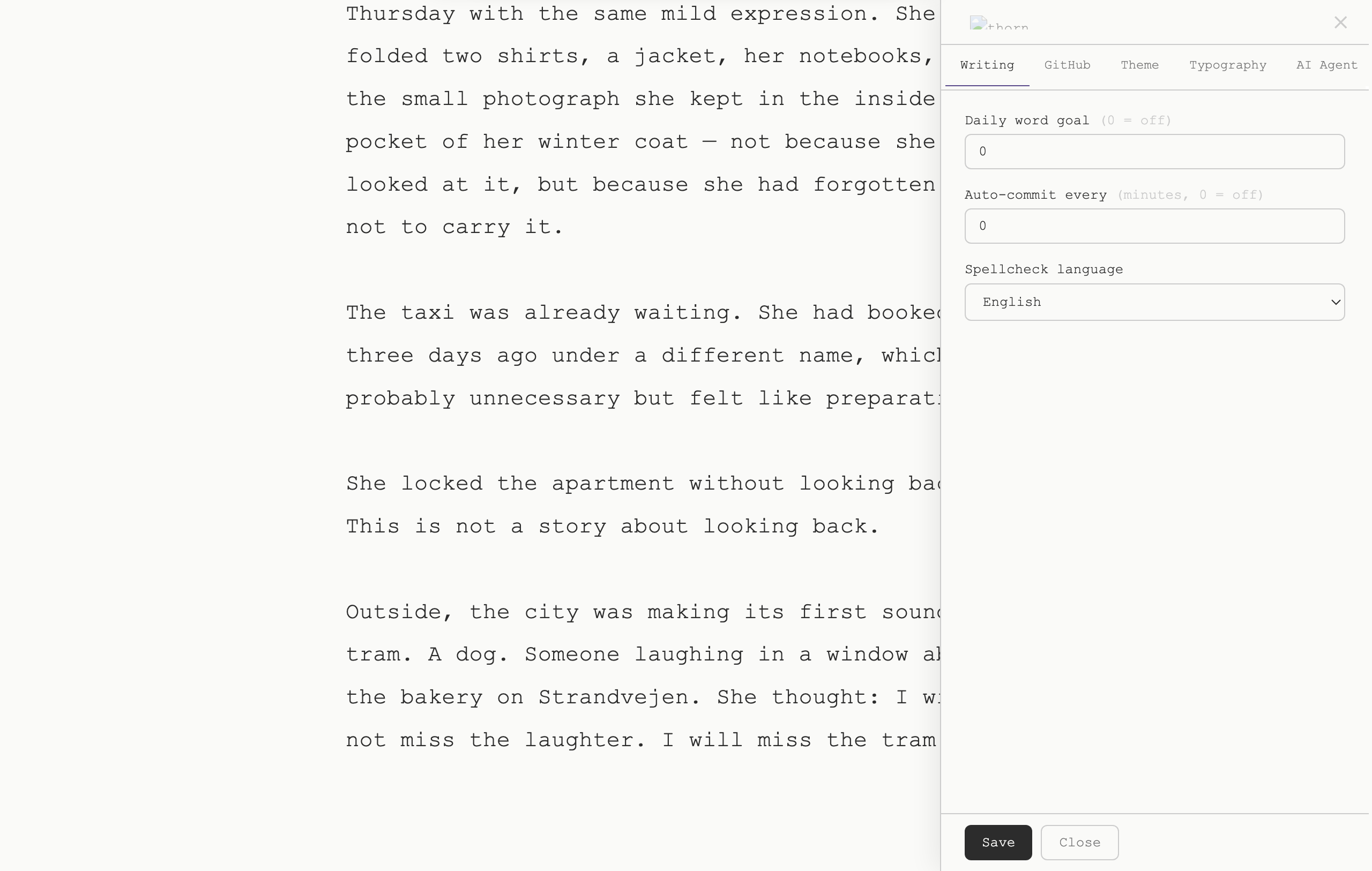
Open Settings with ⌘, or through the command palette.
Available settings
- Font size — small, medium, large, extra large. Adjusts both edit and preview text.
- Line width — narrow, normal, wide, full. Controls the maximum line length of the writing area.
- Spell check language — sets the browser's built-in spellchecker locale.
- Autocorrect — enable or disable smart quotes, em-dashes, and similar substitutions.
- Word goal — set a per-document word target. A subtle progress indicator appears at the bottom of the editor.
- AI API key — paste your OpenAI key here to enable annotations.
- GitHub token & repo — for sync setup.
All settings are stored in localStorage. They persist across sessions on the same device. No cloud, no account.
To reset all settings and documents, clear your browser's site data for the thorn URL. Be aware this will also delete all locally stored documents — export or sync to GitHub first.